You are booking a hire car online, and the form wants your driving licence number and expiry date. The licence is not at hand. You remember taking photos of it last year when you got the new one, front and back, but they are buried among tens of thousands of photos on your iPhone. You want to ask Comma in plain language and get those two photos back.
This guide shows one way to set that up: build an index of your photos with local models, then let Comma search it. It is an example setup on one Mac, not a built-in Comma feature.
Your library stays local
Comma does not need a copy of your photos. The heavy work, reading the text in each picture and turning each photo into vectors, is done by local models. What the agent gets is the result of a search: a few photo IDs, their dates, the text found in them, and, when you need to choose, one contact sheet of thumbnails. Only the photos you finally pick are sent into the chat.
The photos themselves still sync through iCloud; “local” here means the text recognition, vectors and index after the export. If Comma uses a cloud model, these search results, and any picture you ask it to look at, go to the model provider you chose. For a document such as a driving licence, the recognised text includes the number and the address. The index itself is never sent anywhere. Comma is open source, and you can also run it on your own machine.
Build the photo index
The index hooks into the path your photos already take. Nothing changes on the iPhone.
Setting it up takes three steps:
Bring the photos to the Mac. Sync the photos on your iPhone to the Mac with iCloud Photos, and export new photos to a folder every day.
Process them with local models. Recognise the text in each picture, then turn the picture into vectors with Chinese-CLIP and Qwen3-VL-Embedding.
Store them in a local index. Keep the results in a local database, with one command to search it. In this example the command is called
lpa.
What a search returns
Locally, a search is one command. One call can carry several phrasings, and the models load only once. The agent turns words such as “last year” into a date range.
Each result says what kind of evidence stands behind it:
--prefer text puts text matches first, which suits documents, cards and screenshots. --prefer picture puts similar-looking pictures first, which suits a cat or a beach. Near-identical photos taken within a few minutes take one place in the list, and the others hang under it.
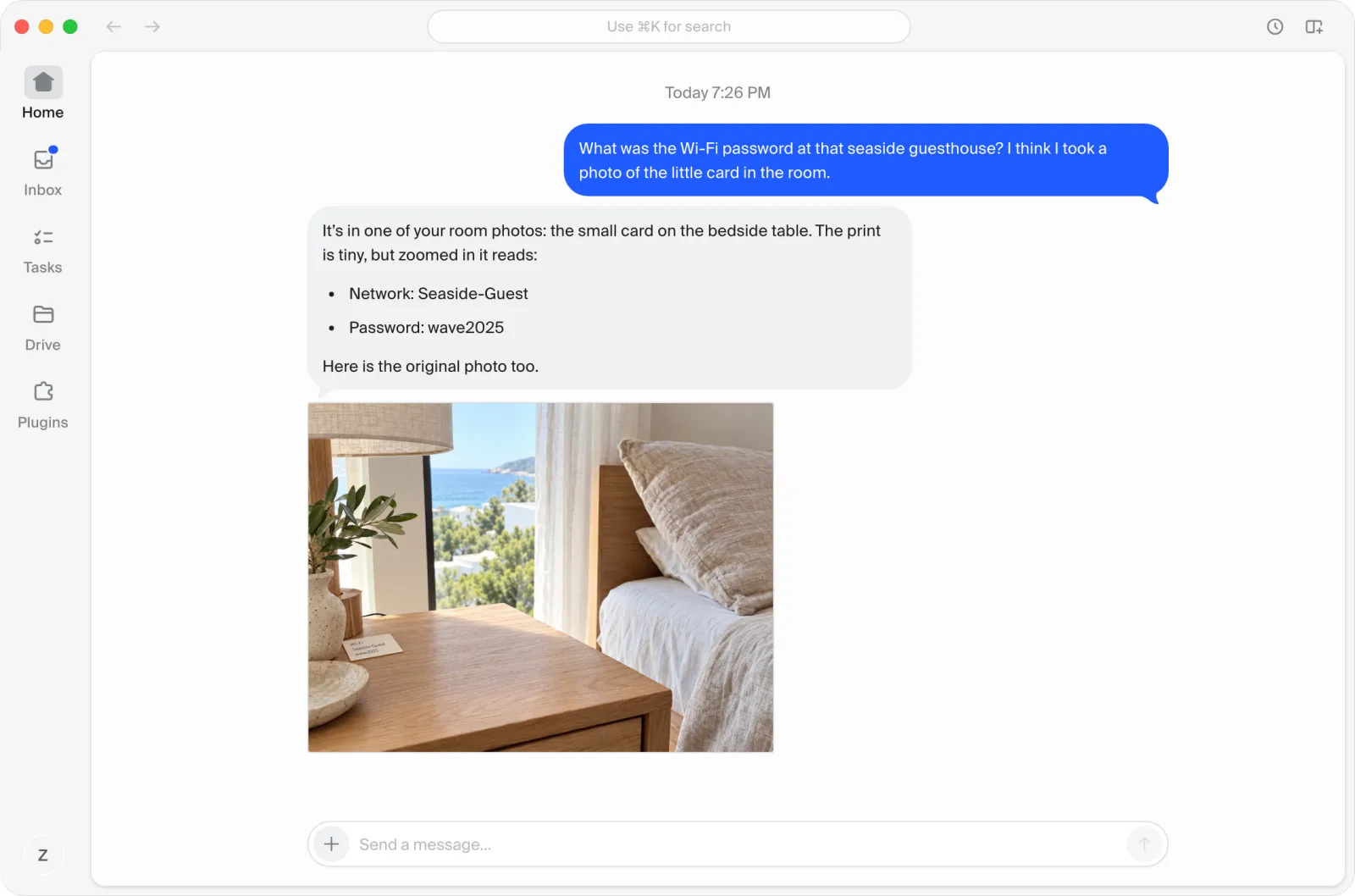
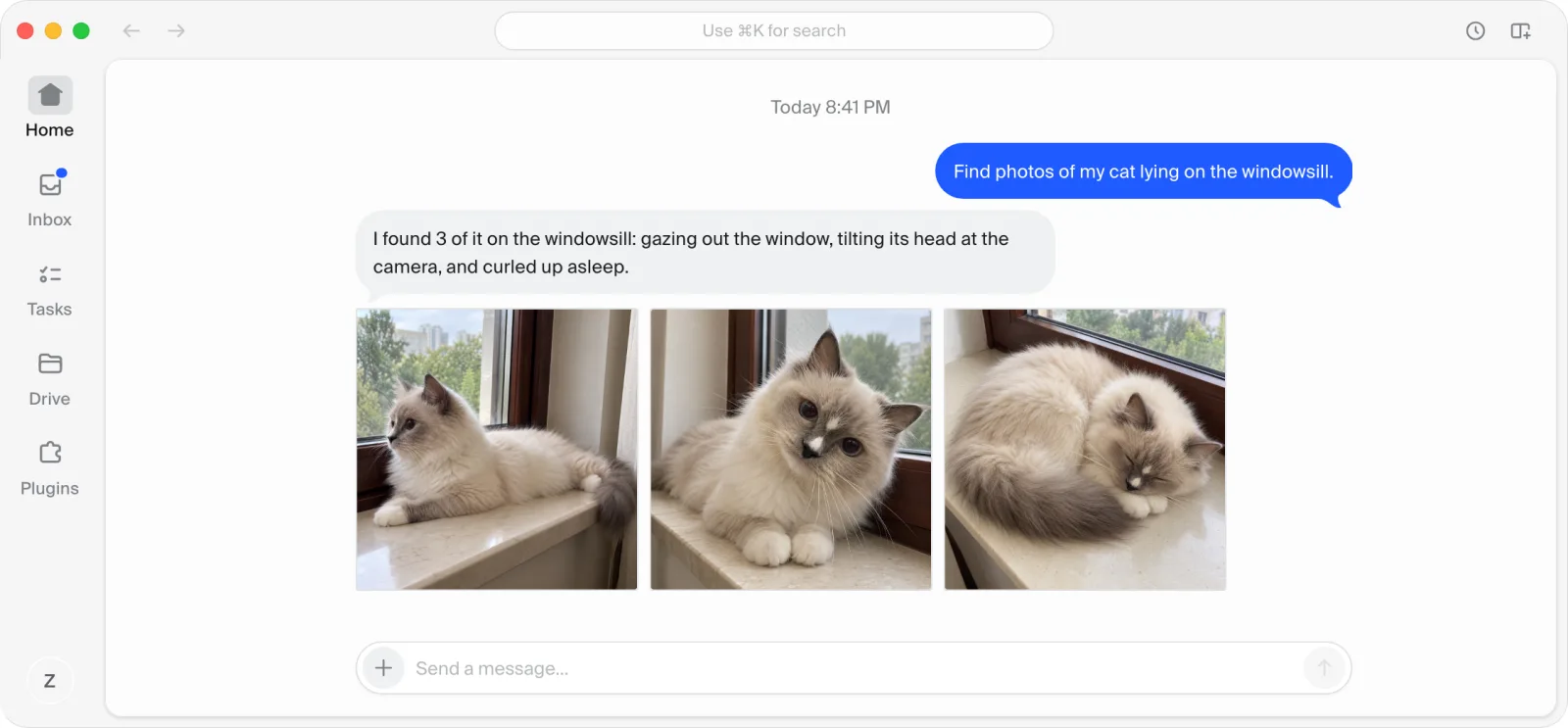
When the top results are uncertain, the agent does not guess. It puts the candidates’ thumbnails on one numbered sheet, nine at most, and asks you to pick.
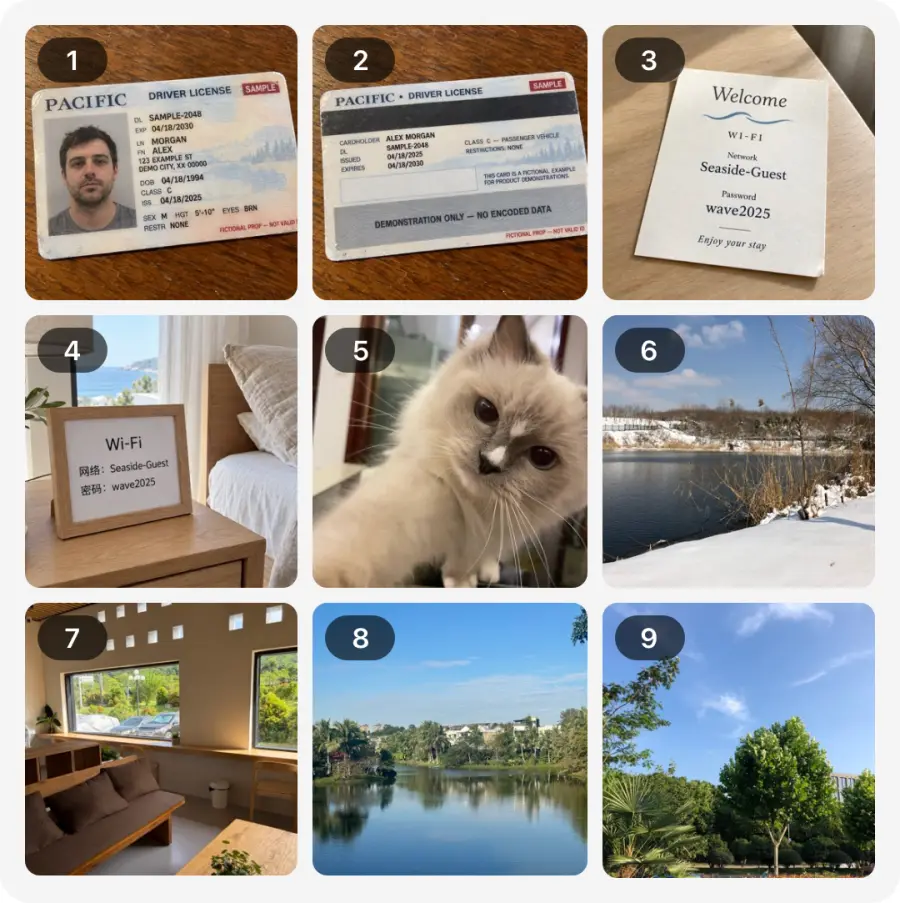
How the two sets of vectors work together was settled by calibrating on a full library of about 50,000 photos. With Qwen3-VL-Embedding alone, the right answers that a person had picked ranked lower than with Chinese-CLIP alone. With the two rankings merged, every item checked did at least as well as with either model alone. “Possible” is also given only when both models’ similarity clears the bar: in one test query, the photos labelled “Possible” went from 4,970 to 4. The cost is that a search takes 3.5–6 seconds instead of about 3.
This example runs on a MacBook Air with 16 GB of memory, with the 2B version of Qwen3-VL-Embedding. On a stronger machine you can use larger Qwen models:
A larger vector model. Replace Qwen3-VL-Embedding-2B with Qwen3-VL-Embedding-8B. After the change, the vectors of every photo have to be computed again with the new model.
Descriptions and tags for each photo. Run Qwen3-VL-4B-Instruct or Qwen3-VL-8B-Instruct as well, to write a one-line description and a few tags for each photo and store them in the text index. On a MacBook Pro with 24 GB of memory, for example, the 8B model runs with 8-bit quantization. The tags are good for a rough filter; they are not guaranteed to be right.
What about English? Chinese-CLIP was trained mostly on Chinese images and captions, so it is not reliable for English queries. The other two parts are not affected: text recognition reads both Chinese and English, and Qwen3-VL-Embedding supports many languages. So put Chinese and English phrasings in the same search, as the command above does; you can write this into a Skill. If your library and your questions are mostly in English, you can also replace Chinese-CLIP with the original CLIP, which again means computing the vectors again.
Find family and friends
Photos already groups the faces of the same person. The index uses those groups directly and does no face recognition of its own.
Name people first. The first time, the agent picks a few batches of photos from these groups, numbers them, and asks you who they are. Only when you reply “3 is Mum” does it remember. A group you have not confirmed is not treated as anyone.
Search by person. After that, when you mention a name, the search looks only at photos that person is in. Names add up: name two people, and you get only photos with both of them, which are your photos together.
Combine with other conditions. A name can go together with what is in the picture and when, such as “photos of Mum and me at the beach last year”:
If a name has not been confirmed, or two people have the same name, the search says so instead of guessing. A wrong name can be corrected, and every correction can be undone.
How videos are found
Videos are searched separately from photos. A default search looks only at photos. If you want, say, the video of your child blowing out birthday candles, tell Comma you are looking for a video, and it adds --source video to the search:
Behind it are three steps:
Take frames. The video itself never goes into a model. The indexer takes a frame every 5 seconds, at most 12 per video.
Search by frame. The frames go through the same processing as photos: text recognition and both sets of vectors. A search compares these frames; when one matches, the whole video is found, and it takes one place in the results.
Send the video. Once you have chosen, the agent sends it with
lpa video.
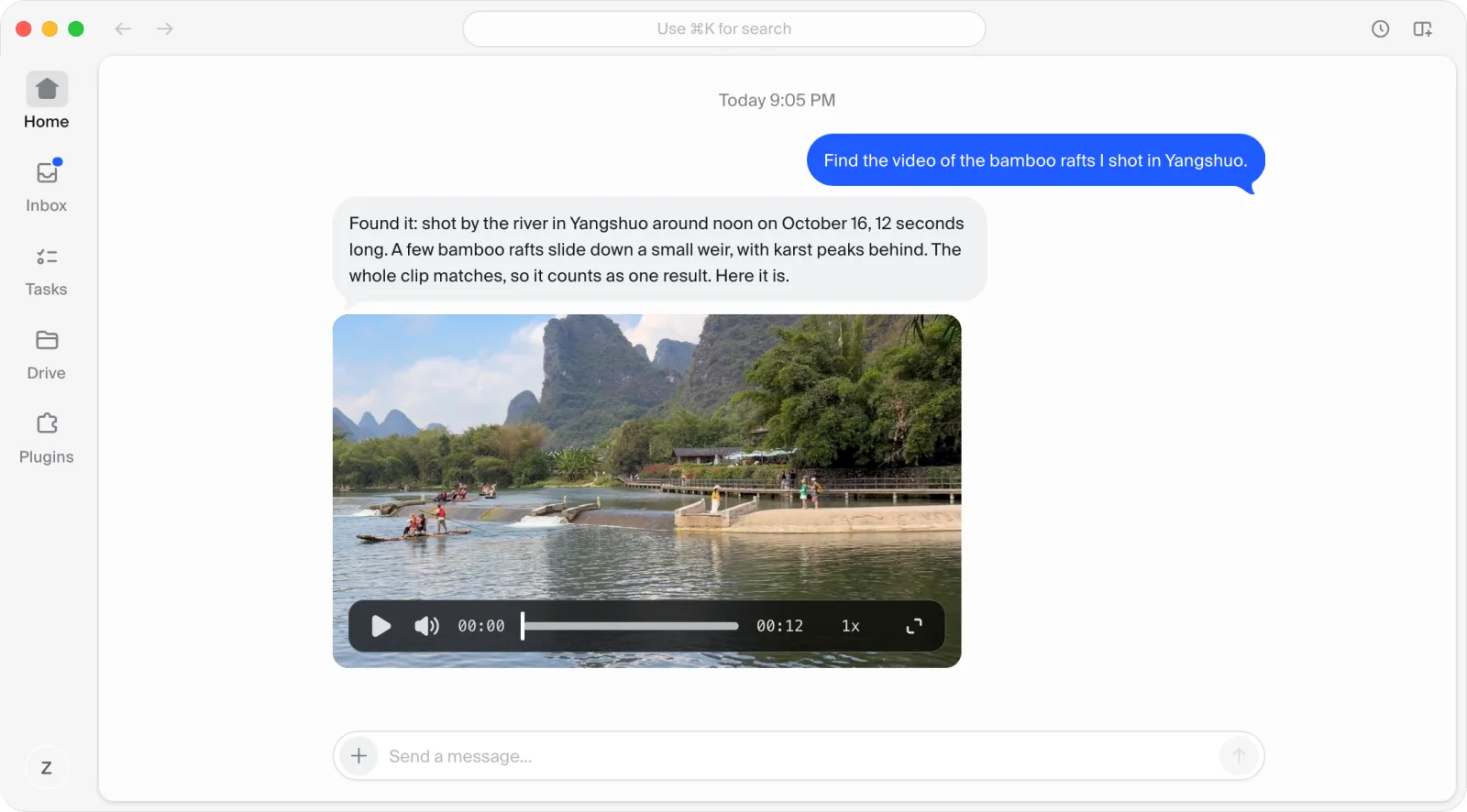
For now it looks only at the picture, not the sound. What is said in a video cannot be searched yet, and the people in a video are not recognised yet. The number of frames is capped, so something that flashes by in a long video may not be found.
How LocalPhotoAgent is built
The lpa in this guide comes from LocalPhotoAgent, an indexer we wrote ourselves, which we will open source. The indexing part is covered above; two more points:
It can stop at any time. Each step of each photo is recorded on its own. Stop halfway, and it carries on next time; change a setting, and only the affected step runs again. While it works, it watches memory, temperature and disk space, and pauses when one goes over its limit.
It gives the agent a few commands.
lpa searchsearches,lpa sheetmakes a contact sheet,lpa previewsends photos andlpa videosends videos. When the agent looks for photos, it calls them in this order:
Connect Comma
This assumes LocalPhotoAgent already works on your Mac. Connecting takes four steps:
Add a device. In Comma, go to Settings > Devices and click Add device to get an install command.
Run the command. Run it in Terminal on the Mac that holds the library, to install the Comma Connector.
Turn on access. A new device starts as Off. Change it to Full, so the agent can run
lpa.Write a Skill. Tell the agent to search first, send a contact sheet when unsure, and send photos only after you pick. You can simply ask Comma to “create a Skill”.
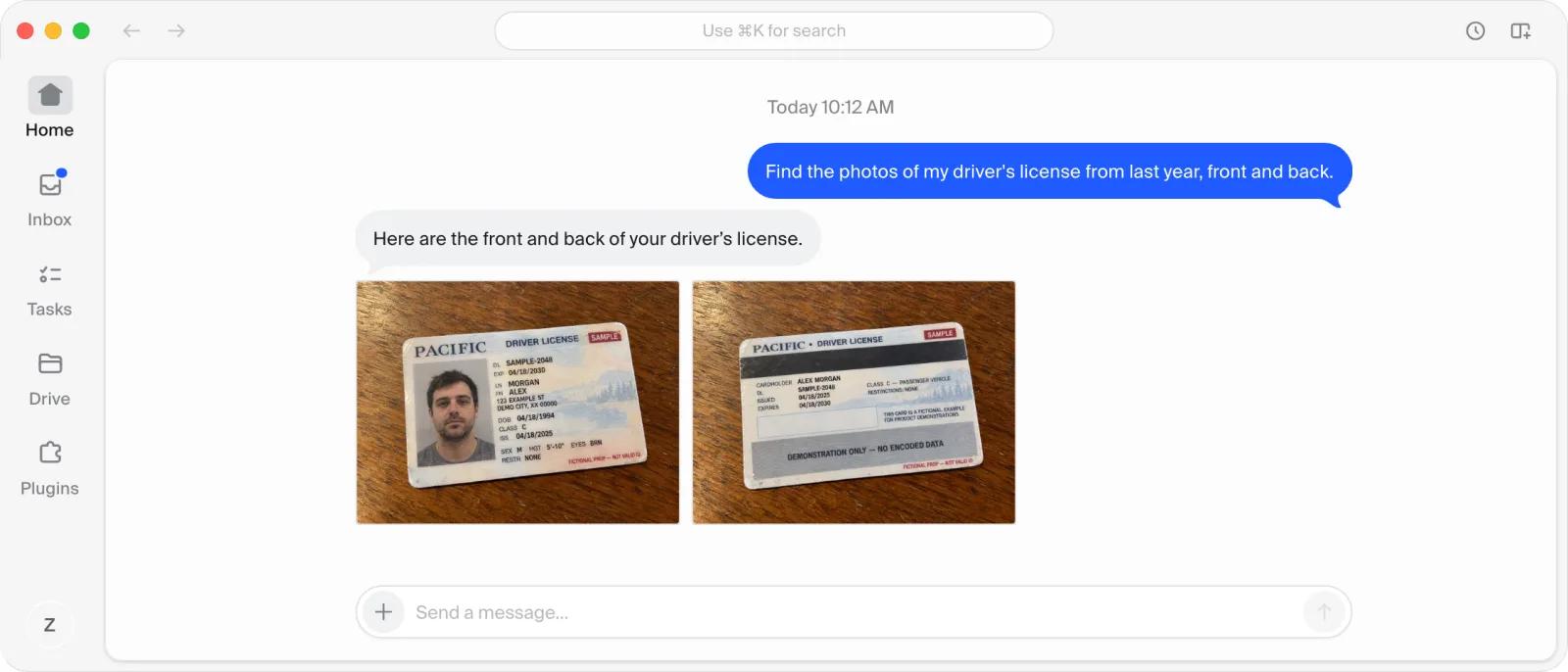
From then on, just ask as you would in any chat: “Find the photos of my driving licence from last year, front and back.”
Trust and limits
The index only reads the originals. It never moves, edits or deletes them. A search does not touch the external drive at all; only making a contact sheet or sending a photo reads it. Moving or deleting photos is outside this setup. Note, though, that with Full access the agent can run commands on this Mac other than lpa.
A text match only means the words were found, not that it is the photo you want. “Possible” is only a candidate. When Comma marks a request as done, check the photos it sent.
The first time, you could say: “Find the photos of my driving licence from last year. Show me the contact sheet first, and do not send, move or delete anything.”